Help Page: Power User Extension
Learn how to use the CVGist Power User Extension to rapidly create tailored resumes for dozens of job postings in minutes. Complete guide with video walkthrough and step-by-step instructions.
The CVGist Power User Extension is designed for serious job seekers who are applying to multiple positions simultaneously. If you've ever had 10, 20, 50+ job posting tabs open and felt overwhelmed, this tool is for you.
What is the Power User Extension?
A Chrome extension that allows you to:
- Generate resumes for all your open job tabs - Turn 100+ job postings into tailored resumes in minutes
- Create LinkedIn-optimized resumes - Generate a resume tailored to your LinkedIn profile
- Select specific jobs - Choose which tabs to process with an intuitive checkbox interface
- Track progress - Real-time feedback as resumes are generated

Video Walkthrough
Installation
How to Use: Step-by-Step Guide
Method 1: Generate Resumes from Open Job Tabs
Step 1: Open Job Postings in Tabs
Browse job boards (LinkedIn, Indeed, Glassdoor, etc.) and open interesting positions in new tabs. Don't worry about the number - the extension handles 100+ tabs easily.
Step 2: Click the Extension Icon
Click the CVGist icon in your Chrome toolbar. You'll see a clean popup showing:
- Number of open tabs detected
- A "Generate" button
- A help icon (you're reading that page now!)
Step 3: Click "Generate"
Click the Generate button. The extension will:
- Collect all your job posting tabs
- Open the CVGist dashboard (or focus it if already open)
- Automatically show the Power User dialog
Note: If you're not logged in, you'll be prompted to sign in first.
Step 4: Select Jobs (Optional)
The Power User Mode dialog appears with:
- All tabs pre-selected with checkboxes
- Tab titles and URLs for easy identification
- "Select All" / "Deselect All" toggle at the top
- Count of selected jobs
Uncheck any tabs you don't want to process (like non-job tabs that were open).
Step 5: Generate Resumes
Click the "Generate X Resumes" button at the bottom. The extension will:
- Extract job description content from each selected tab
- Send the data to CVGist's AI engine
- Generate tailored resumes for each position
- Show real-time progress as each resume is created
Step 6: Download Your Resumes
Once generation is complete:
- Resumes appear in your CVGist dashboard
- Each resume is named after the job title and company
- Download individually or as a ZIP file
- Edit any resume before downloading if needed
Method 2: Generate Resume from LinkedIn Profile
- Navigate to your LinkedIn profile page
- Click the CVGist extension icon
- Click "Generate LinkedIn Resume"
- The extension extracts your profile data
- Generates a professionally formatted resume based on your LinkedIn
This is perfect for:
- Creating a baseline resume from your existing profile
- Maintaining consistency between LinkedIn and resume
- Quick resume creation for networking events
Quick Visual Walkthrough
Step 1: One-Click Extension
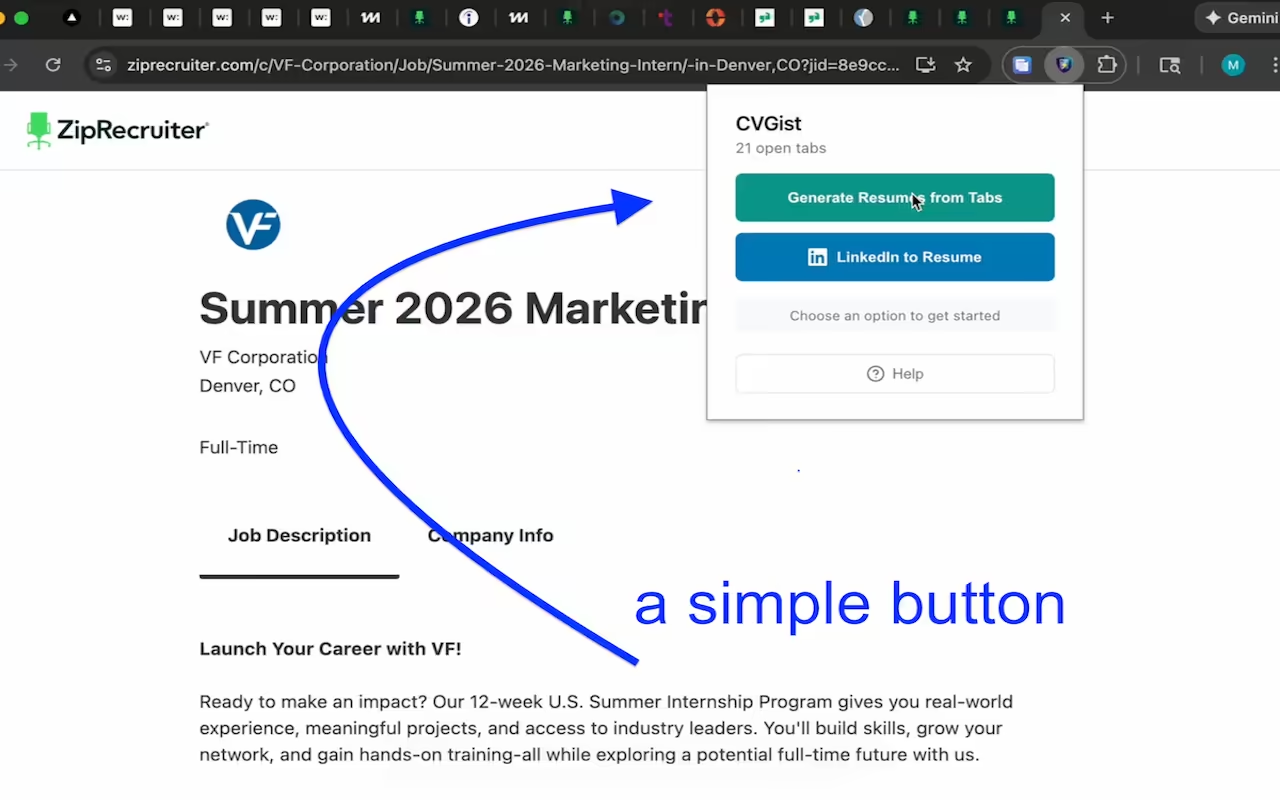
The extension is simple, yet powerful. Once you have all your job posting tabs open, just click the extension icon and hit the button. That's it.
Step 2: Automatic Job Detection
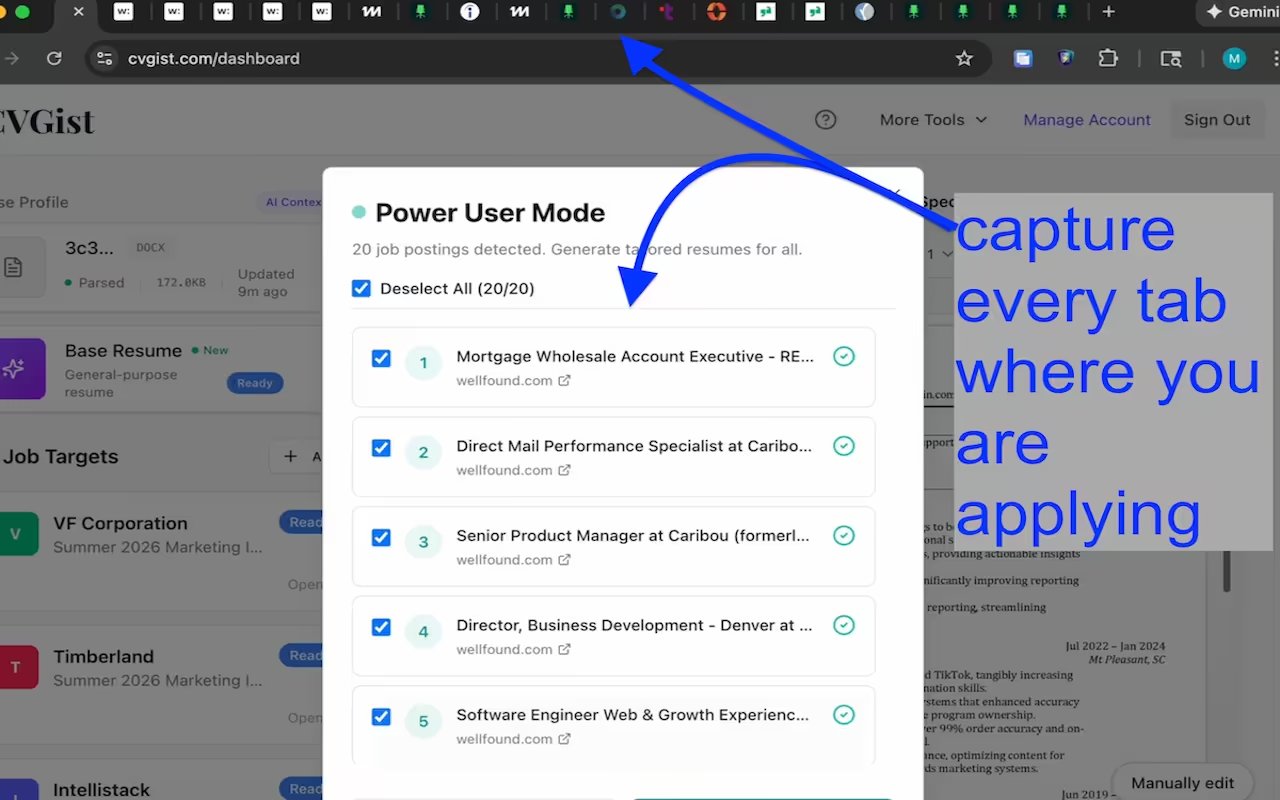
CVGist automatically recognizes all your open job tabs. In this example, over 20 job postings are captured instantly. Select the ones you want, or generate resumes for all of them.
Step 3: Tailored Resumes Ready
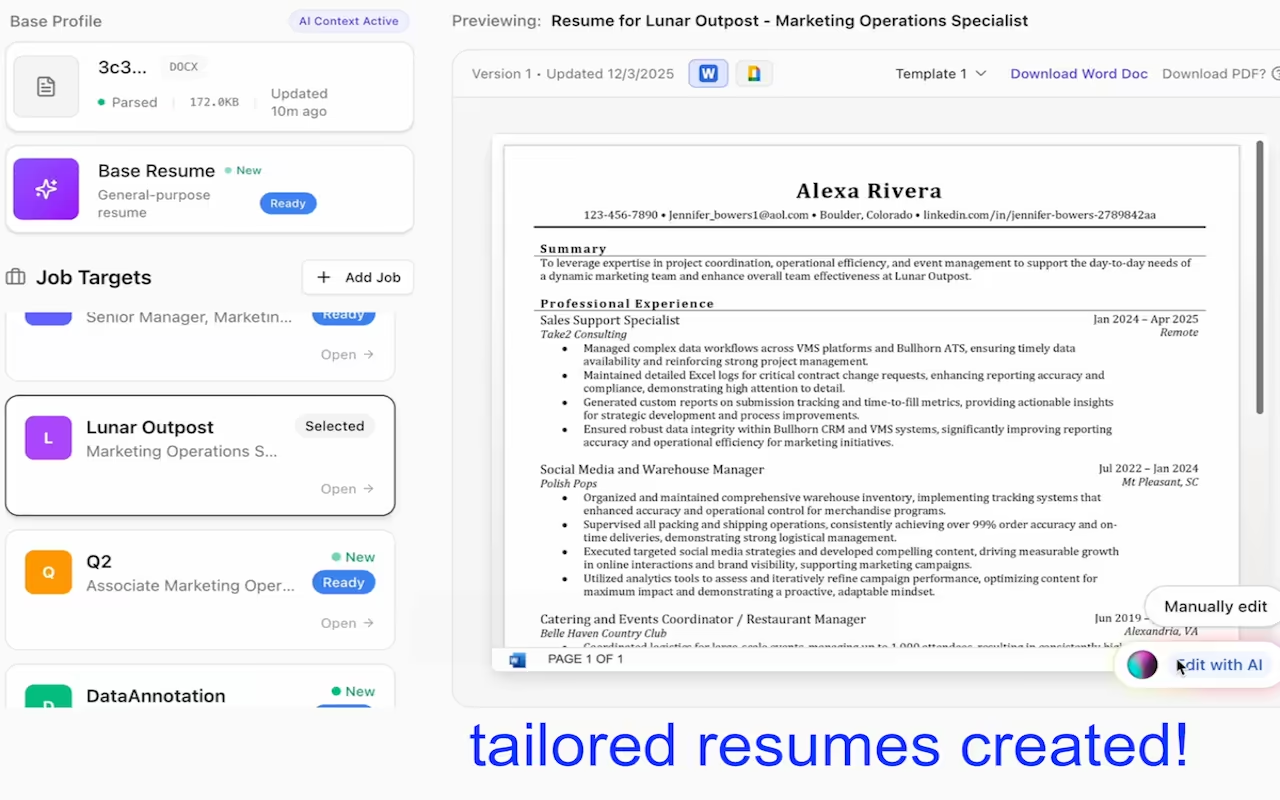
Within minutes, you have professionally tailored resumes for every job. Each resume is customized to match the specific job description, highlighting your most relevant experience and skills.